
This article describes how to import PowerShell script to the MSI package in order to run this script during the installation process.
This instruction consists of two parts:
- Import script to the package
- Create the Custom action for running the script
Step-by-step instruction:
- Launch MSI Editor.

- Select Open… from MENU.

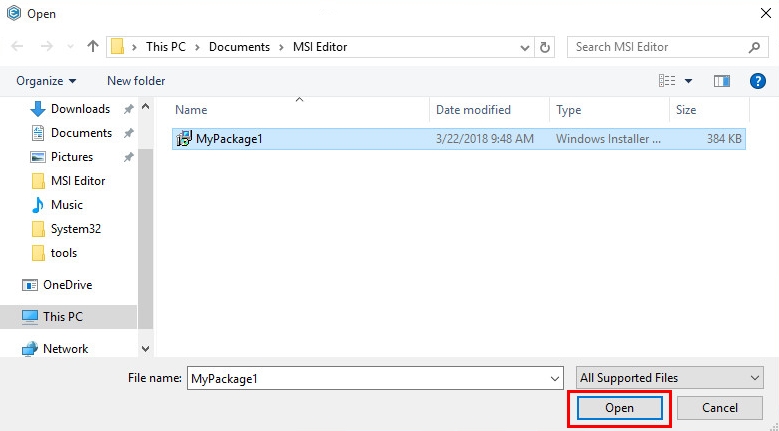
- Choose an MSI package, to which you want to import the script and click Open.
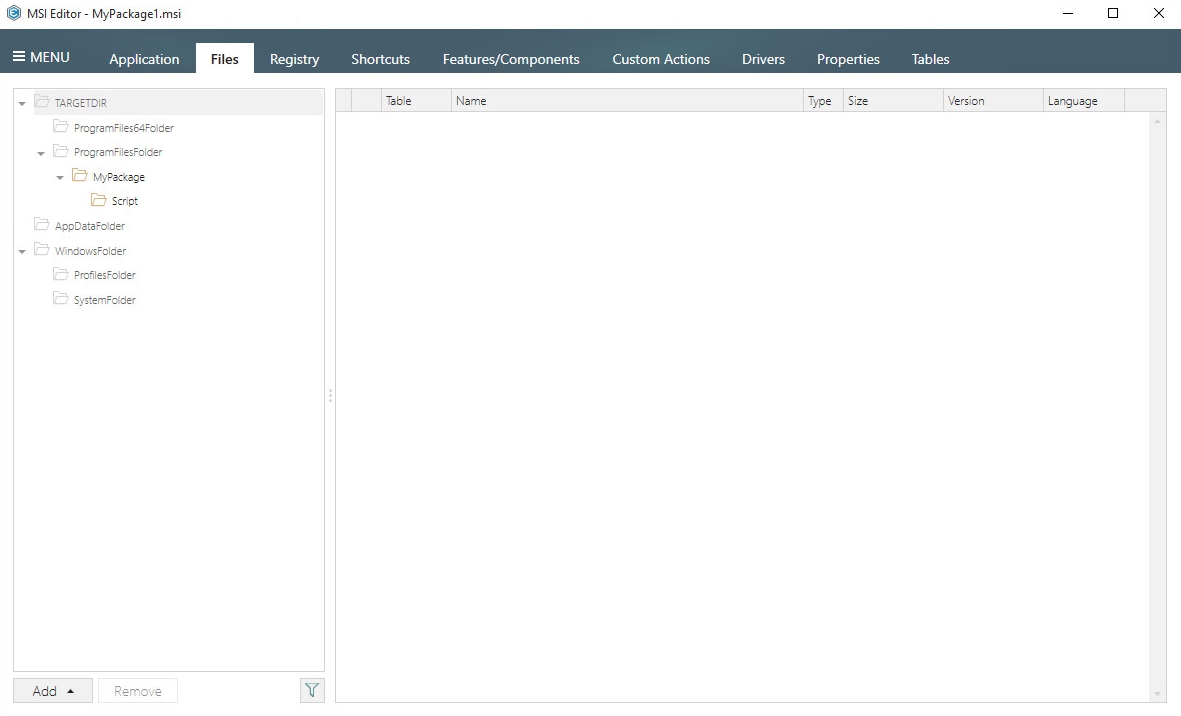
- Open the Files tab.
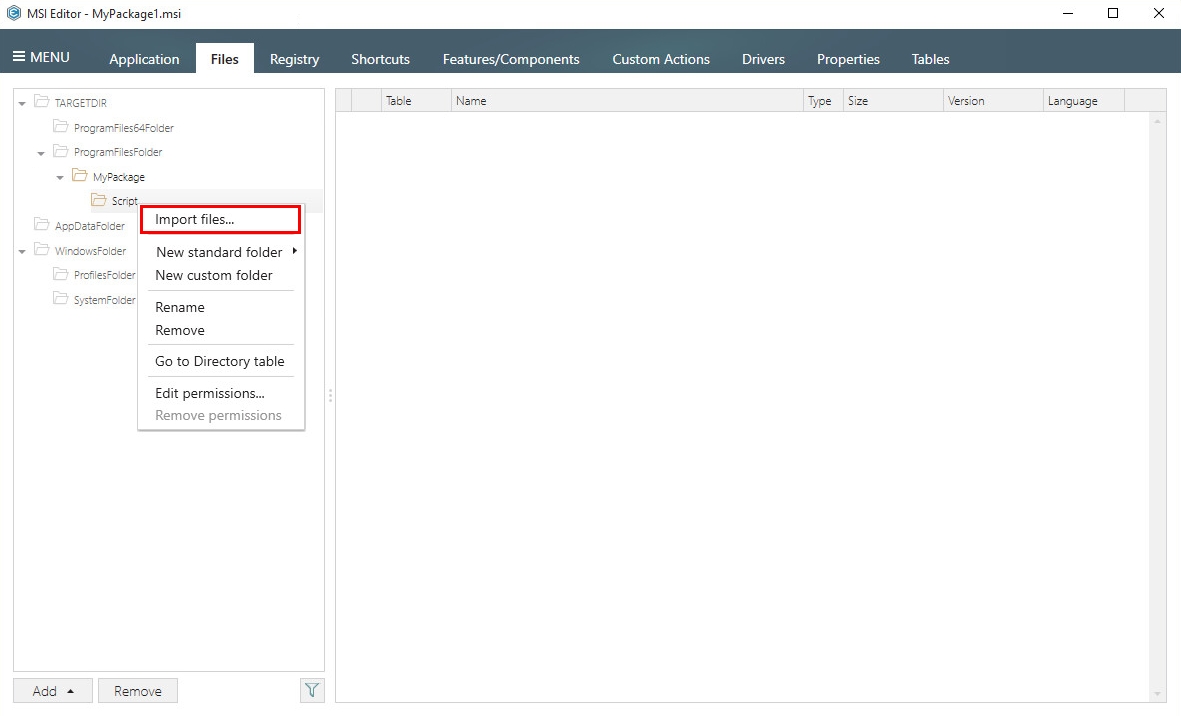
- Select Import files... from the context menu of a folder, to which you want to import the script.
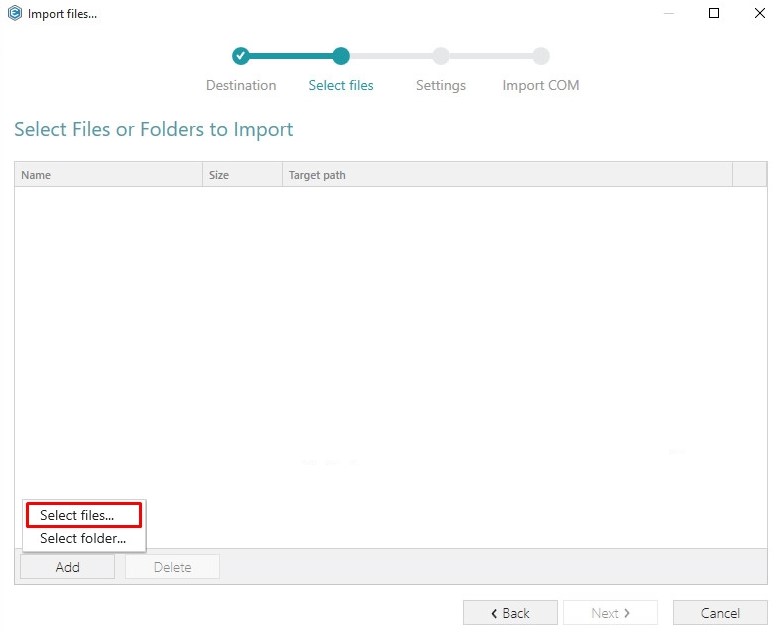
- Click Add -> Select files…
- Choose the PowerShell script from your file system and click Open.
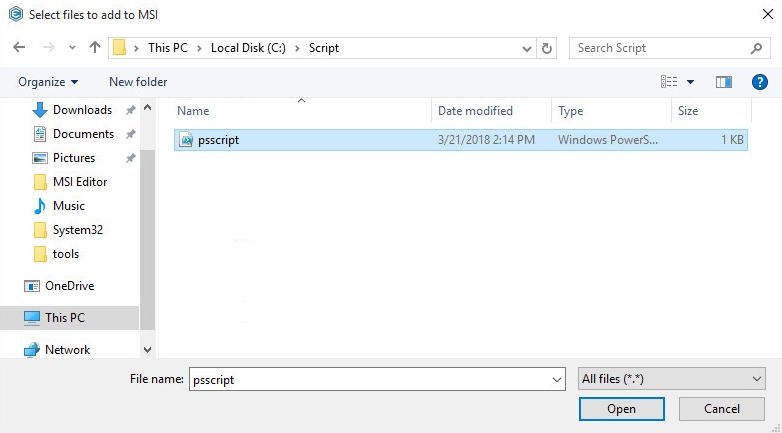
- Either tick the Complete operation with default settings option or go through all the steps choosing the necessary settings and complete the wizard.
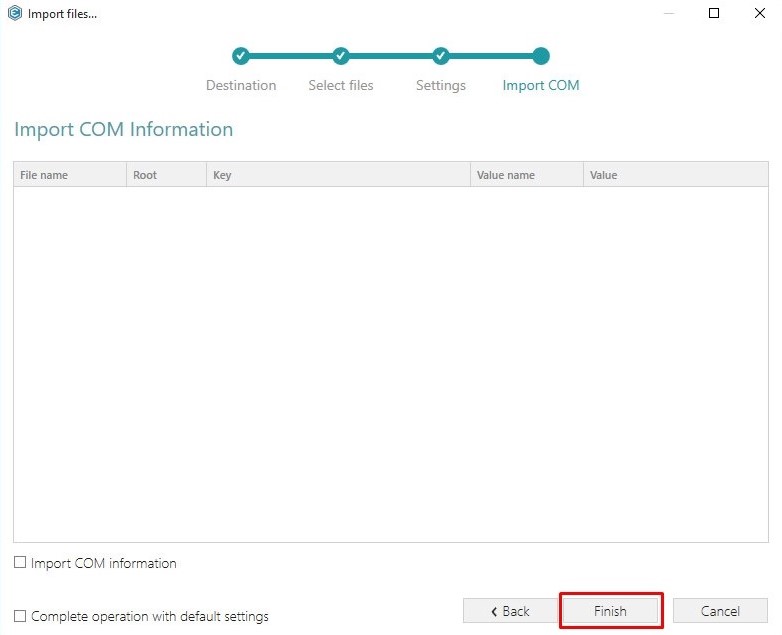
- Open the Custom Actions tab.
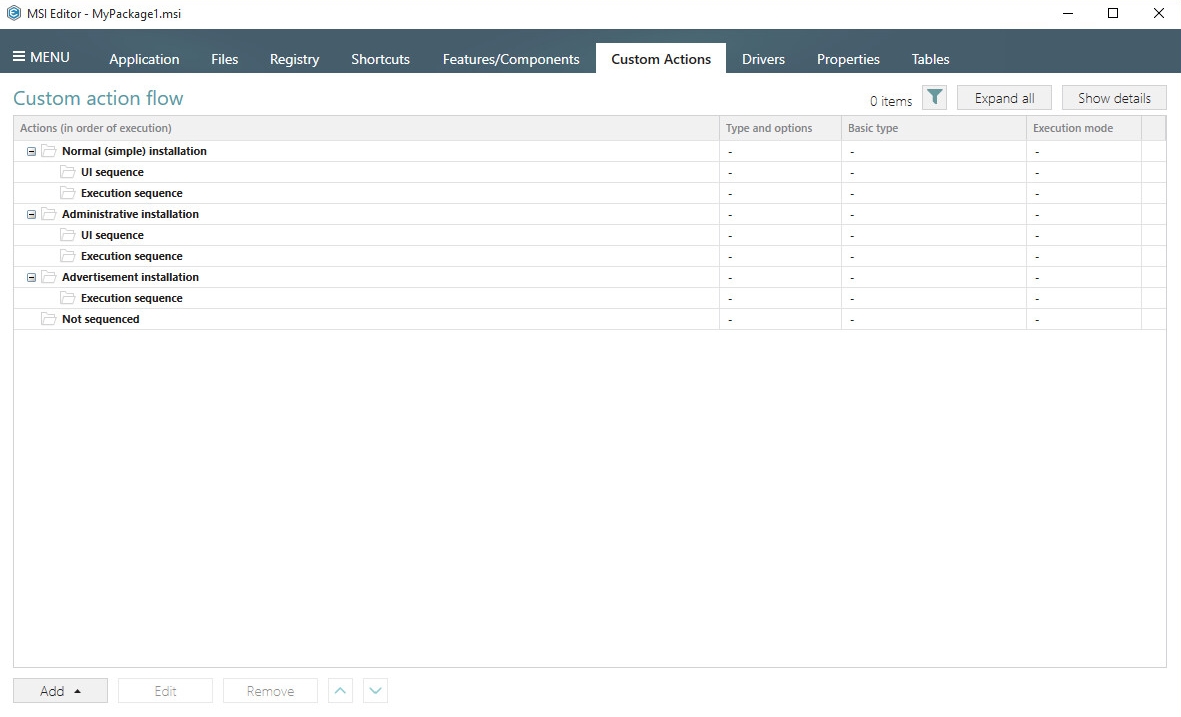
- Click Add -> Custom action.
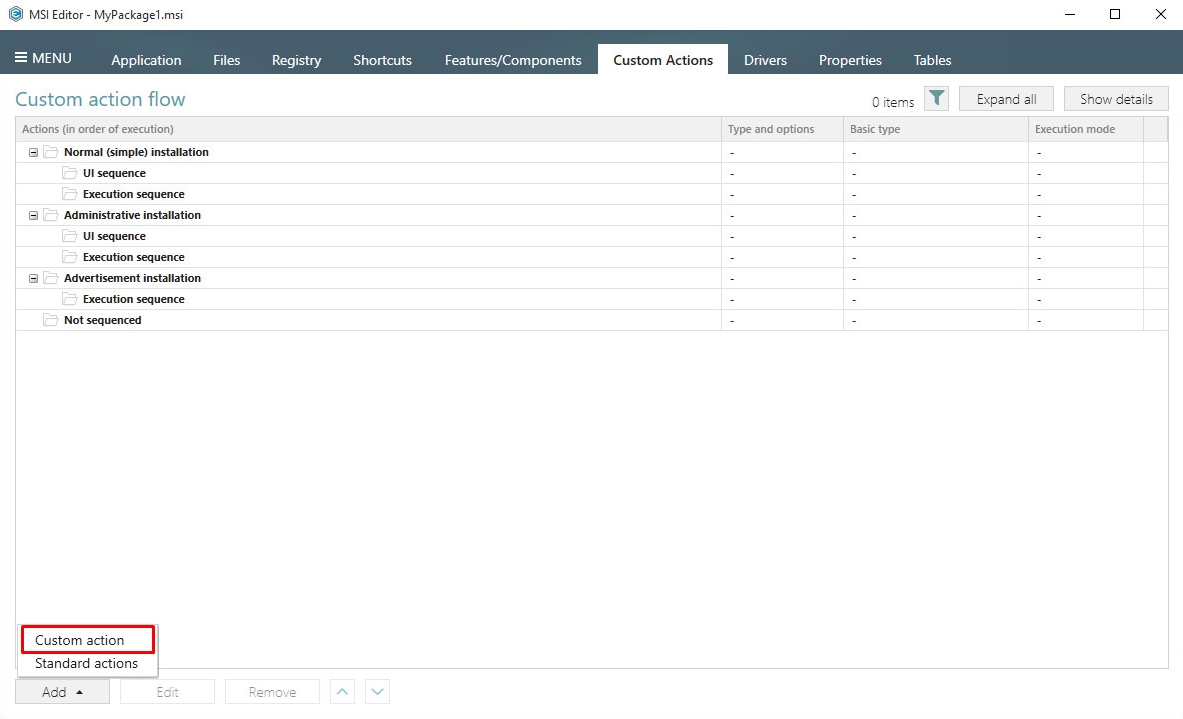
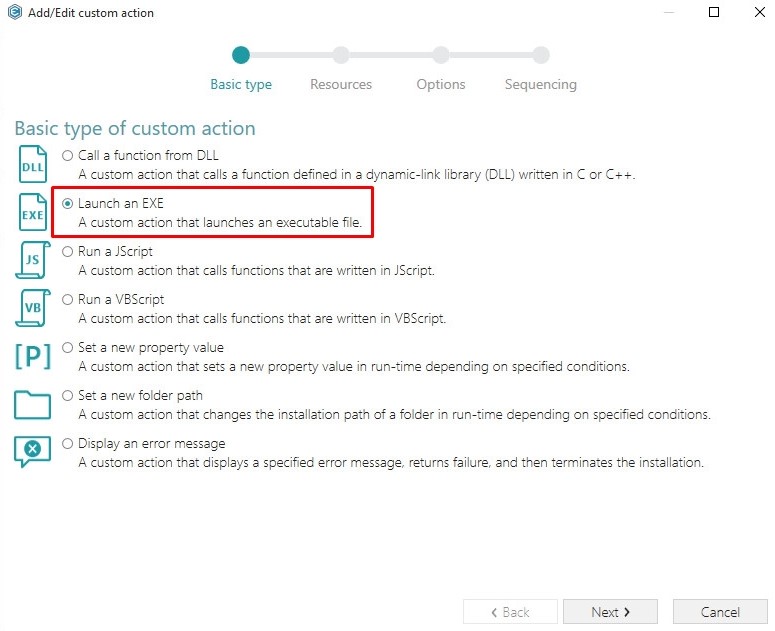
- Select Launch an EXE and click Next.
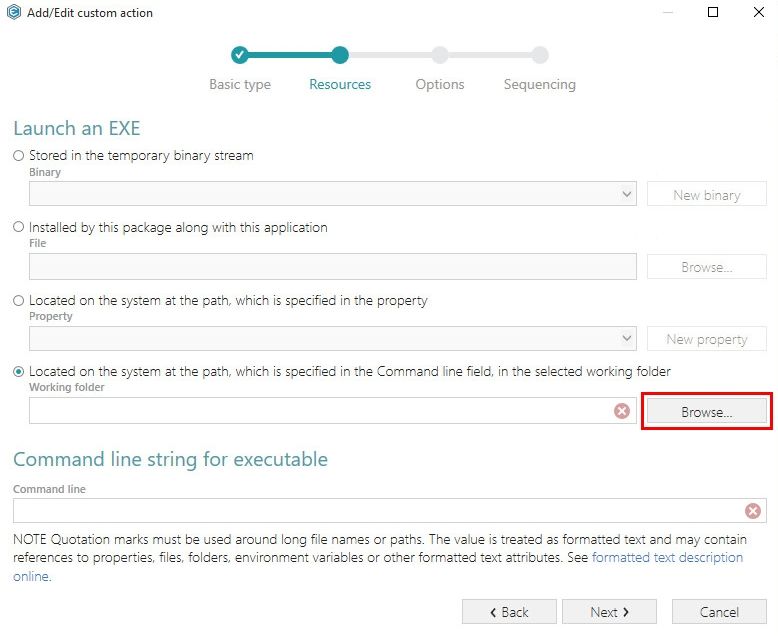
- Tick the Located on the system at the path, which is specified in the Command line field, in the selected working folder and click Browse...
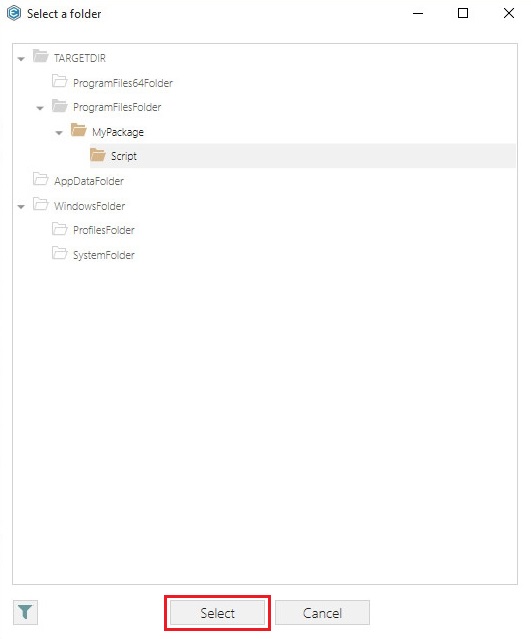
- Select a folder, to which you have imported the PowerShell script and click Select.
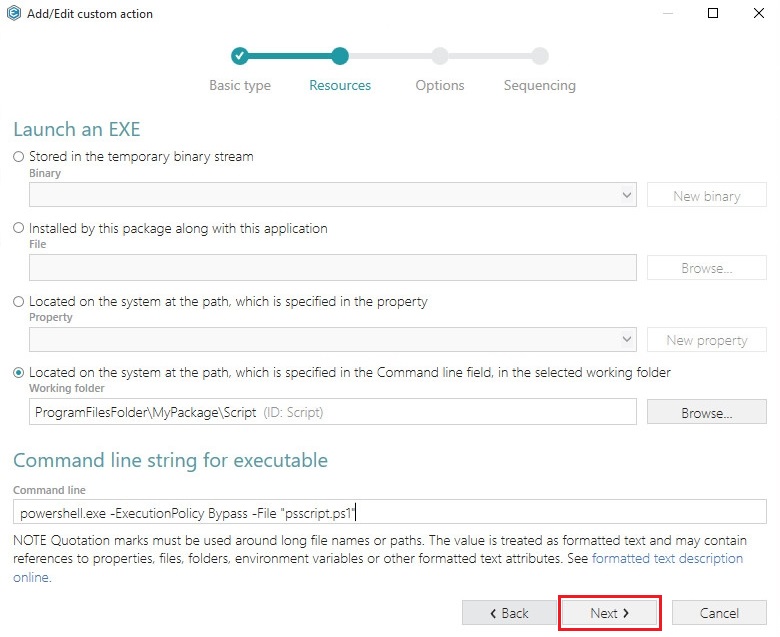
- Enter the powershell.exe -ExecutionPolicy Bypass -File "<name of script file>" to the Command line field, where <name of script file> is a name of your imported PowerShell script with the file extension (e.g. psscript.ps1). Then, click Next >.
NOTE -ExecutionPolicy Bypass parameter was added to make sure the custom action will always execute regardless of the current execution policy on the system. - Select Deferred execution mode, Run in system context and An asynchronous execution that waits for exit code at the end of the sequence options, and click Next>.
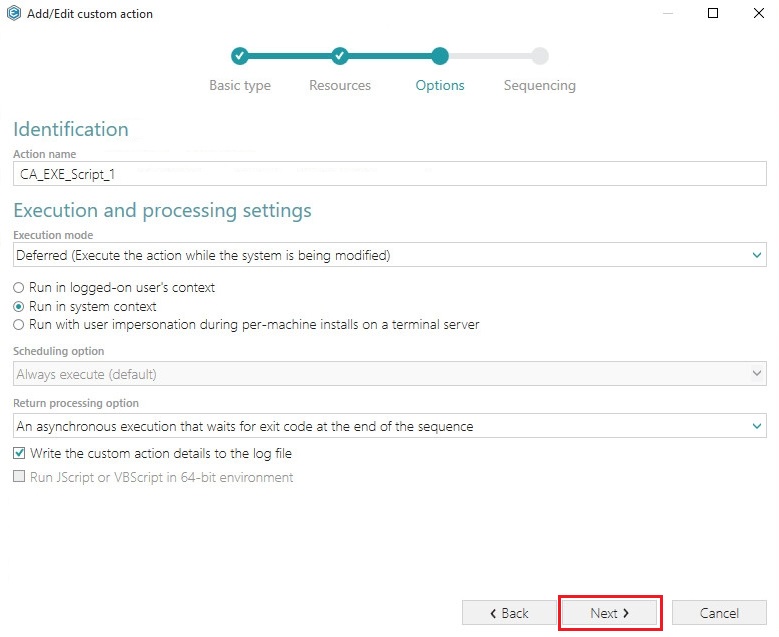
- Select Run after InstallFiles (or any other position, located below this) from the Execution sequence (recommended) list, if needed, specify execution conditions either by entering them manually or choosing from the drop-down list. Click Finish to add your custom action.
NOTE The sequence drop-down list allows you to select only compatible positions, taking into account your previously selected options.
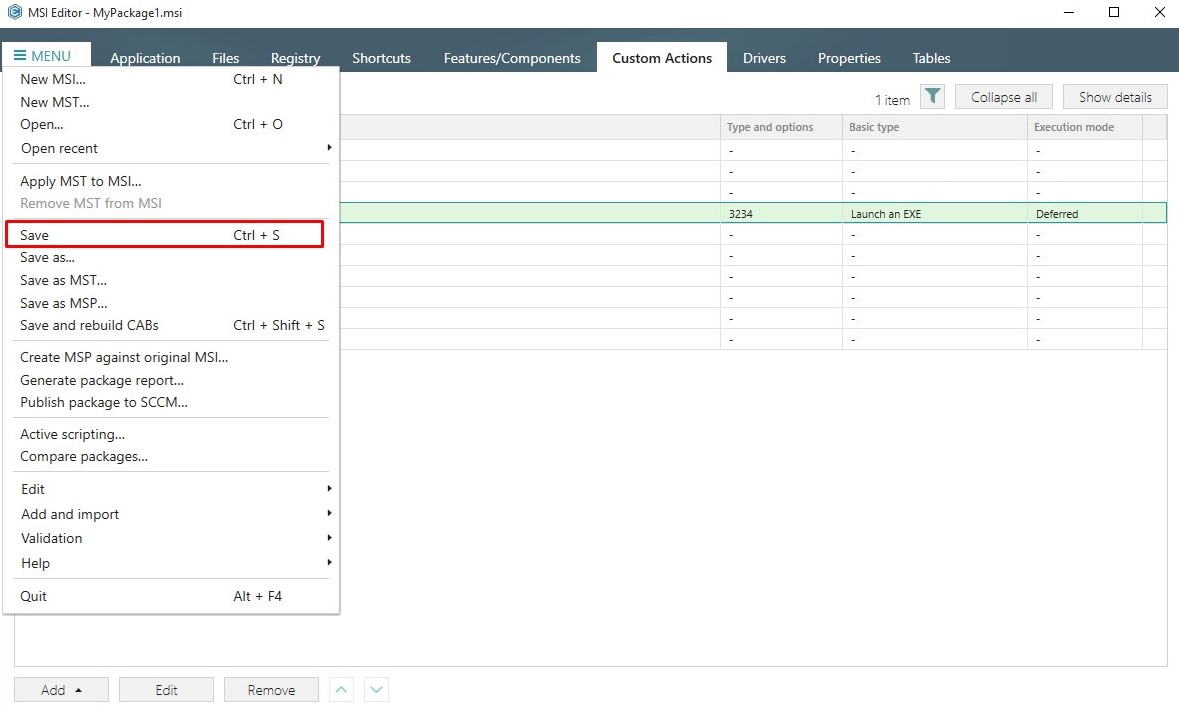
- Click Save from the MENU to save your MSI package.
Comments
0 comments
Please sign in to leave a comment.