
UPDATE: This support article address the PACE Suite versions up to 5.0. For the newer versions please check the Getting started guide.
This article describes how to add per-user files to the existing MSI package and install these and other per-user files for all users via Active Setup. Note that Active Setup is a standard Windows Installer solution for installing the current user data.
Step-by-step instruction:
- Launch MSI Editor.

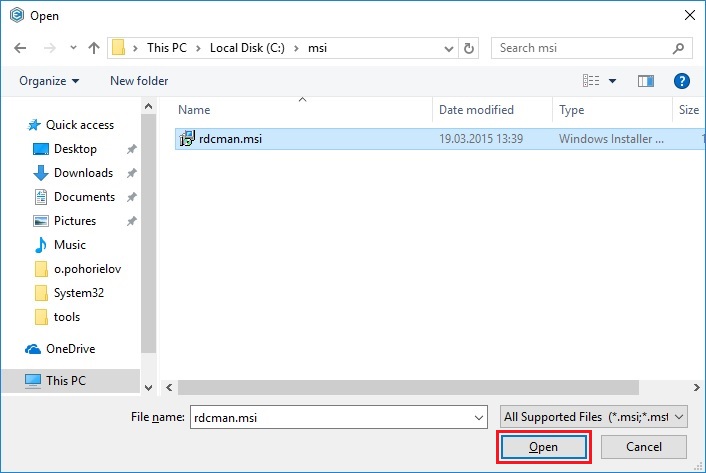
- Select Open… from MENU

- Choose an MSI package, which you want to modify, and click Open.
- For importing per-user files to the package open the Files tab.
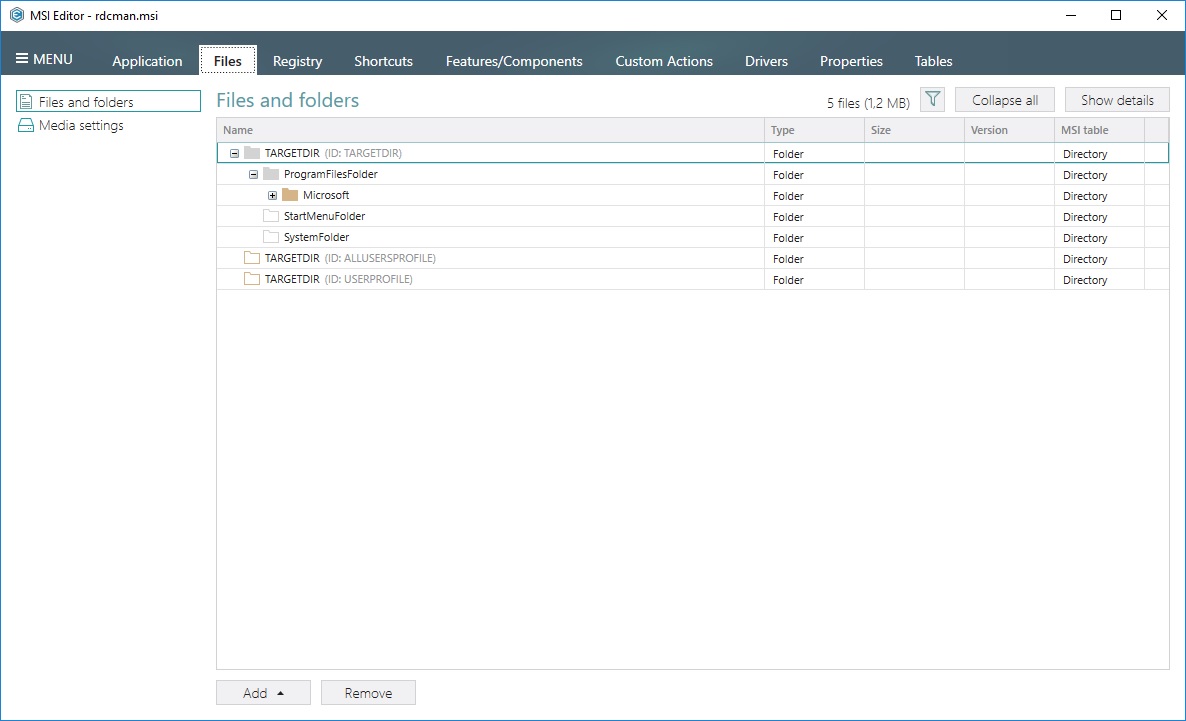
- Lets add the AppData per-user folder, which is represented as MSI standard directory property - AppDataFolder. For this, click Add > System folders.

- Select the AppDataFolder and click Add.

- To create a sub-folder under the AppData folder, select New subfolder from the context menu of the AppDataFolder.

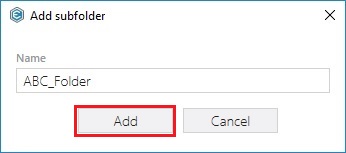
- Enter a sub-folder name and click Add.
- For importing per-user files, select Import files from the context menu of the existing or created per-user folder.

- Click Add > Add files.
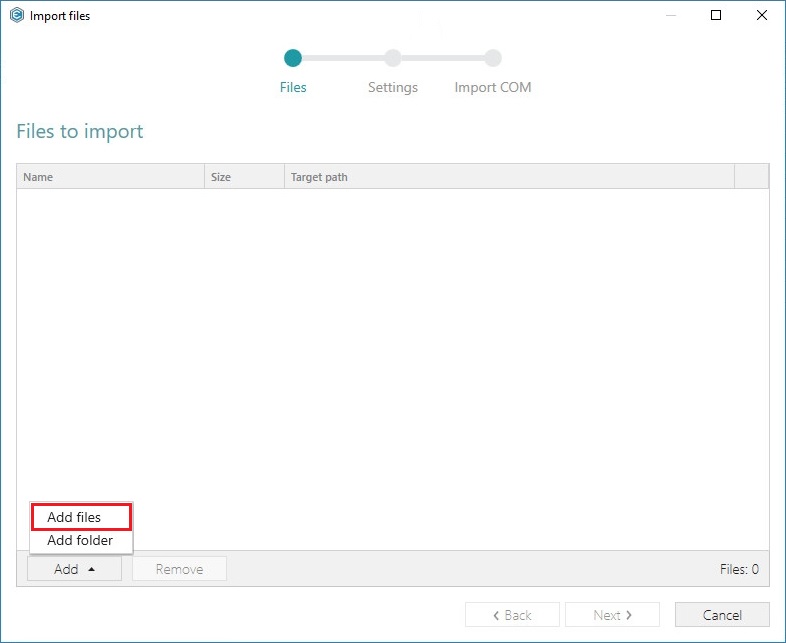
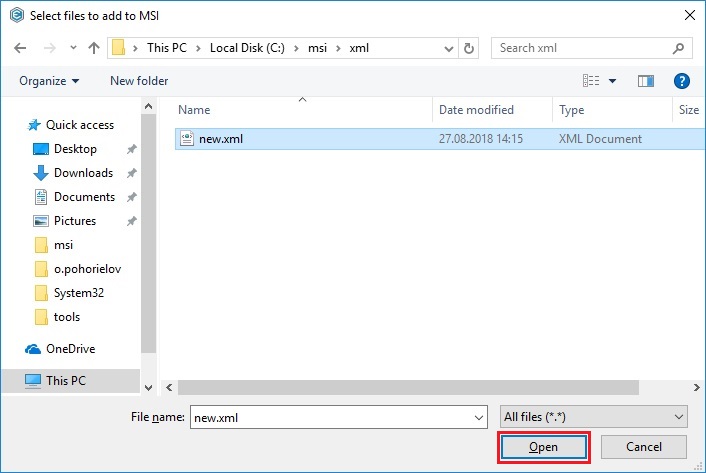
- Select per-user files, which you need to import and click Open.
- Click Next >.

- If necessary, change the default import files settings and click Next >.

- Click Finish to complete the import.

- Finally, add the ActiveSetup registry entry that will secure installing per-user files for every user. For this, go to the Features/Components tab and select a component that contains registry entries. Just for this example, we will use 'CurrentUser_files1' component, created during the file import, but in general, we recommend to use per-machine components and do not mix per-user and per-machine data in one component. Expand the selected component.
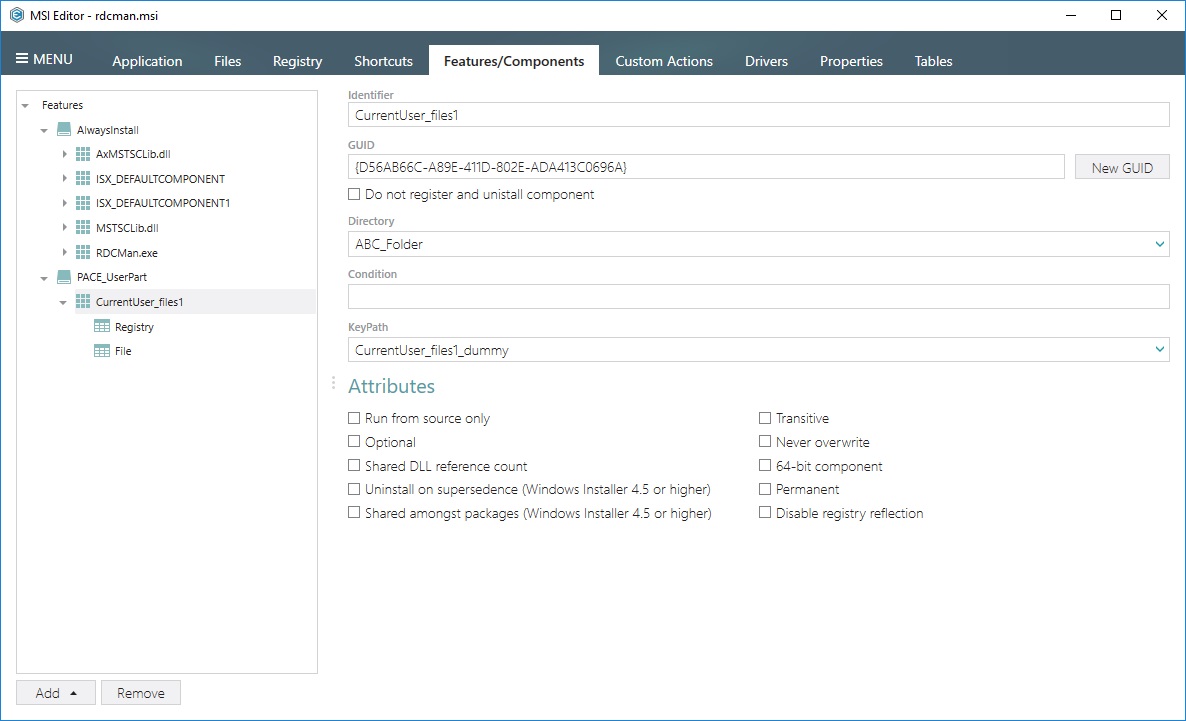
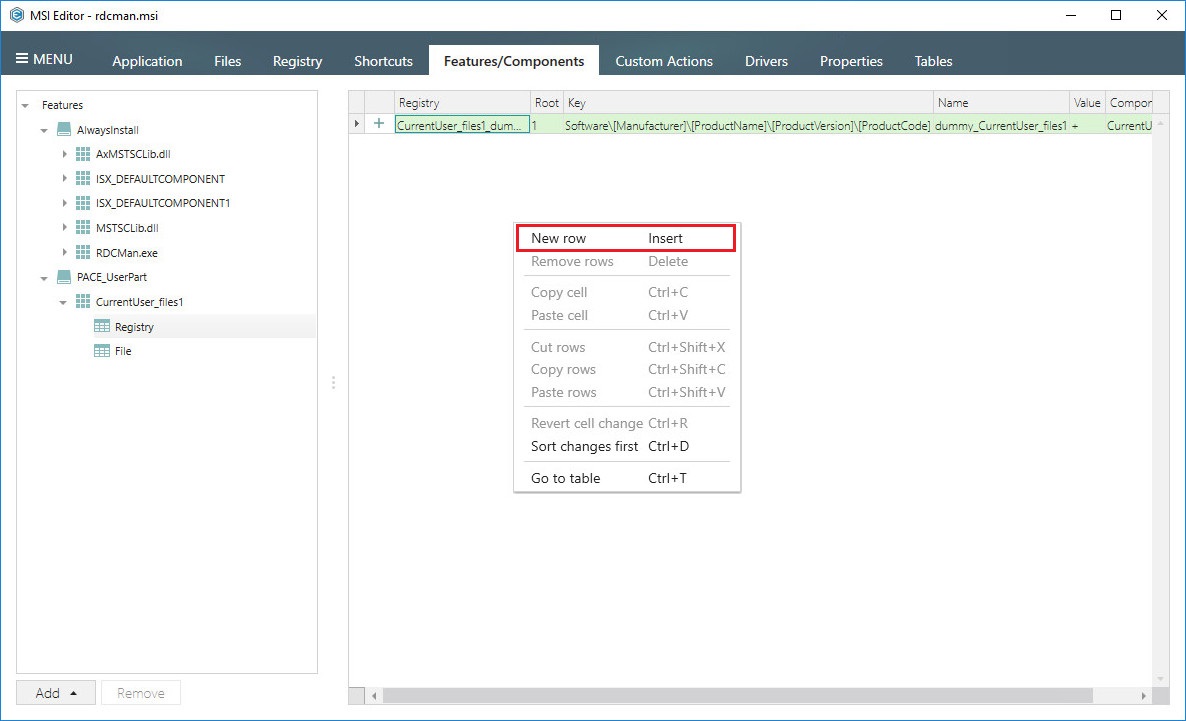
- Click on Registry of the selected component and then select New row from the context menu of the right pane.
- Fill-in all fields as described below and click Ok.
Registry: ActiveSetup
Root: 2
Key: Software\Microsoft\Active Setup\Installed Components\[ProductCode]
Name: StubPath
Value: msiexec /fups [ProductCode] /qb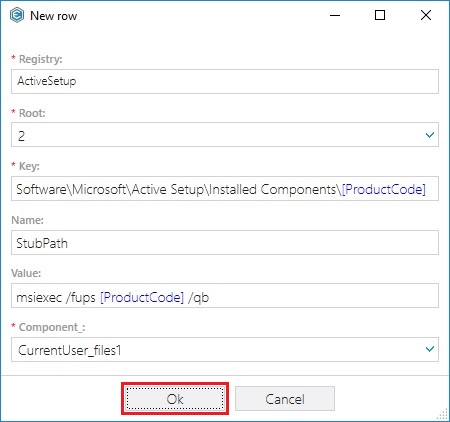
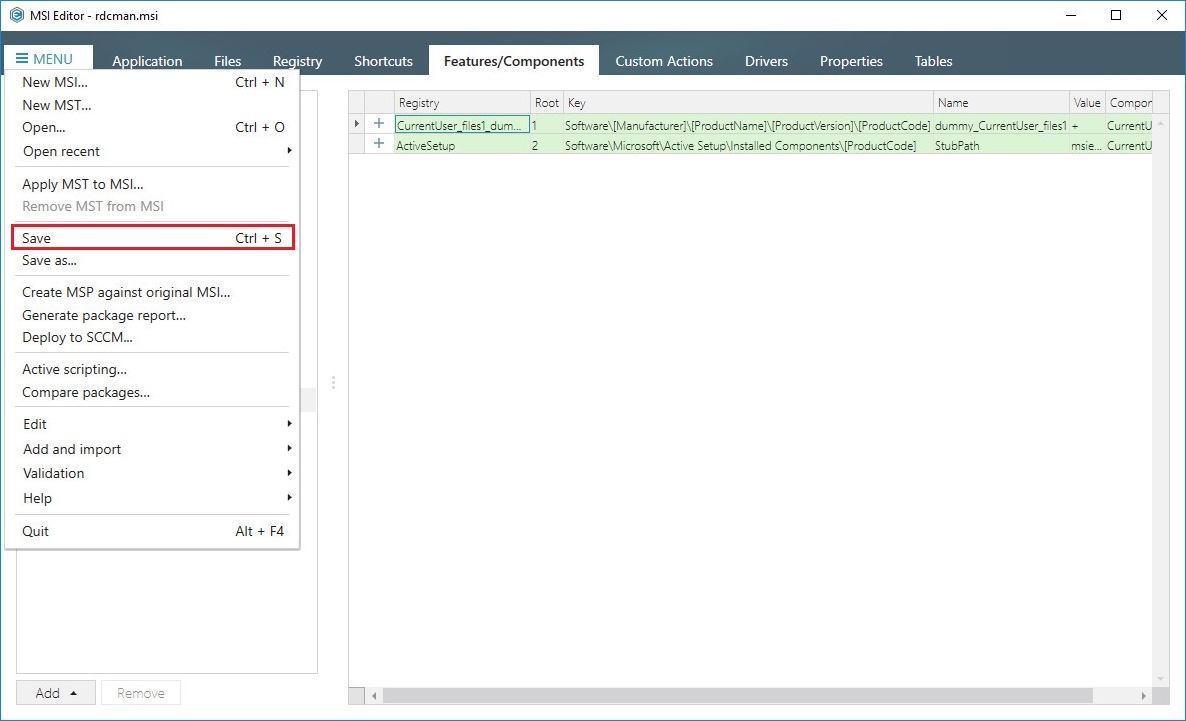
- Select Save from MENU to save your MSI package.
- After installing MSI package, log-out from your user-account and log-in back to let ActiveSetup copy the necessary per-user files.
Find more information about Active Setup at http://www.itninja.com/question/active-setup-configuration
Comments
0 comments
Article is closed for comments.